1 Setup Your Canvas
Look to the right panel – that's your live drawing app. Make sure the Pen is selected. Set your brush size to 5 or 8 (click the gear icon on the right toolbar). Pick a bold color like #E74C3C (red).
You'll be using multiple colors for this exercise, so get familiar with the color picker in the Settings menu!
2 Draw Two Overlapping Circles
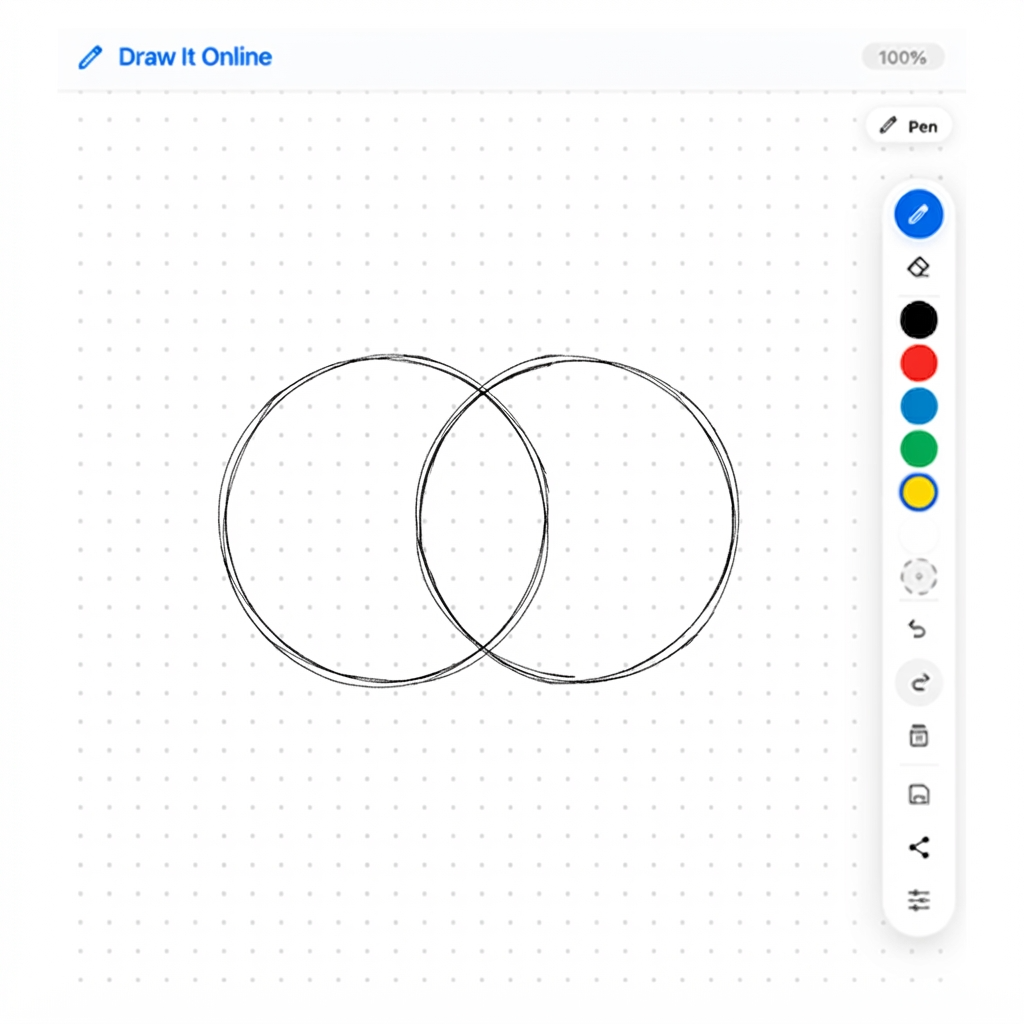
Start by drawing two circles that overlap in the middle – like a Venn diagram.
- Draw the first circle on the left side of the canvas.
- Draw the second circle on the right side, overlapping the first.
- Try to make them roughly the same size.
- Don't worry if they're not perfect – this is practice!
Pro tip: Use the circle-drawing skills you learned in the first tutorial. Remember – smooth, continuous motion!
3 Add Color & Opacity
Hit Clear on the right toolbar. Now draw two overlapping circles again – but this time, use different colors.
- Circle 1: Use red (#E74C3C) with 100% opacity.
- Circle 2: Use blue (#3498DB) with 100% opacity.
- Notice how the overlapping area looks darker or muddy.
Now try this: In the Settings menu, lower the Opacity of the blue brush to 50% and draw it again over the red circle. See how the overlapping area becomes a beautiful purple?
4 🏆 The Challenge
Click "Clear" on the right toolbar. Now draw a three-circle Venn diagram.
Your mission: Create a beautiful overlapping composition using three different colors and varying opacities.
- Circle 1: Red (#E74C3C) – 100% opacity
- Circle 2: Blue (#3498DB) – 70% opacity
- Circle 3: Yellow (#F1C40F) – 50% opacity
- Arrange them so all three overlap in the center.
When you're happy with your creation, hit the Save button to download your masterpiece!