Mastering Brushes & Opacity
The brush is your primary tool in Draw It Online. This tutorial explores the different brush types, how to adjust size and opacity, and tips for getting the most out of each brush.
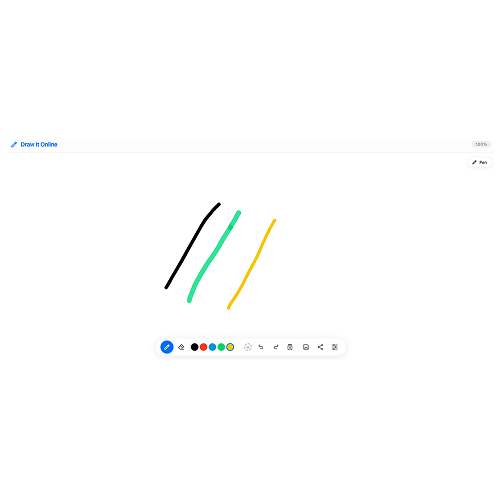
Each brush type creates a unique stroke.
Brush Types
Draw It Online offers three distinct brush types. You can switch between them in the Settings modal.
Basic
A solid, consistent stroke. Great for clean lines and filling.
Soft
A softer, more blended stroke. Perfect for shading and gradients.
Ink
A crisp, sharp stroke like a fountain pen. Ideal for detailed linework.
From left to right: Basic, Soft, and Ink brushes.
Adjusting Brush Size
You can adjust the brush size using the slider in the Settings modal or directly from the toolbar.
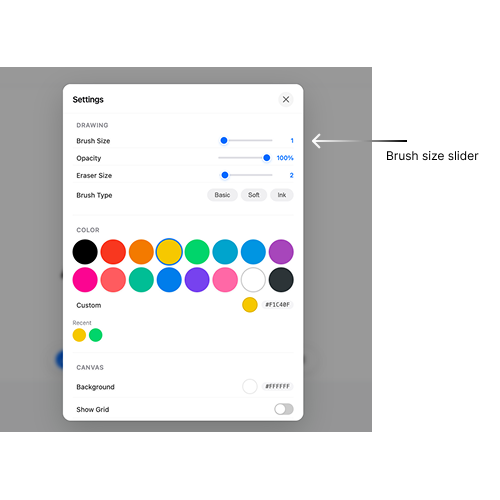
The brush size slider – from 1px to 30px.
- Small sizes (1-5px) – Great for fine details and outlines.
- Medium sizes (6-15px) – Perfect for general drawing and sketching.
- Large sizes (16-30px) – Ideal for filling, shading, and bold strokes.
Use [ and ] keys to quickly adjust brush size up and down.
Working with Opacity
Opacity controls how transparent your brush stroke is. Lower opacity creates a more translucent, watercolour-like effect.
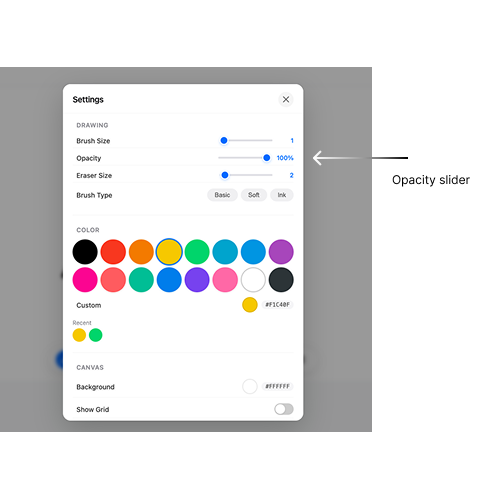
Opacity examples: 100%, 50%, and 20%.
- 100% opacity – Solid, opaque strokes.
- 50% opacity – Semi-transparent, great for layering.
- 20% opacity – Very light, perfect for subtle shading.
To adjust opacity, open the Settings modal and use the opacity slider.
Pro Tips
- Layer your strokes – Use low opacity and build up layers for depth.
- Combine brush types – Use Ink for outlines, Soft for shading, and Basic for filling.
- Vary your size – Start with large strokes for the base, then switch to small for details.
- Use the eraser – The eraser works just like a brush but removes colour instead of adding it.
Press E to quickly switch to the eraser, and P to switch back to the pen.
Now you know how to master brushes and opacity in Draw It Online. Experiment with different combinations to find your unique style.