Exporting & Sharing Your Artwork
Once you've created something amazing in Draw It Online, you'll want to save or share it. This tutorial covers all the export and sharing options available – from PNG downloads to direct sharing.
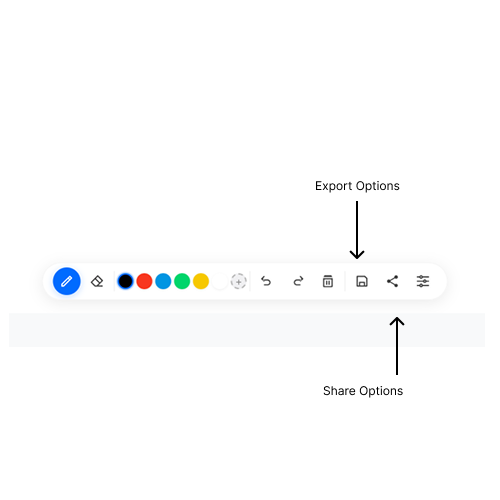
Export your artwork in multiple formats.
Export Options Overview
Draw It Online offers three main ways to export or share your artwork. Each option serves a different purpose.
PNG
Download as a high-quality image file. Perfect for sharing, printing, or using in other projects.
Export as a PDF document. Great for portfolios, presentations, or printing.
Share
Share directly using your device's share feature. Send to friends, social media, or save to cloud.
Export options are available on the toolbar and in Settings.
Save as PNG
PNG (Portable Network Graphics) is the most common image format. It supports transparency and high quality, making it perfect for sharing your artwork online or printing.
How to save as PNG
- Click the Save button on the toolbar (the floppy disk icon).
- A preview of your artwork will appear.
- Click Save as PNG.
- The file will download to your device.
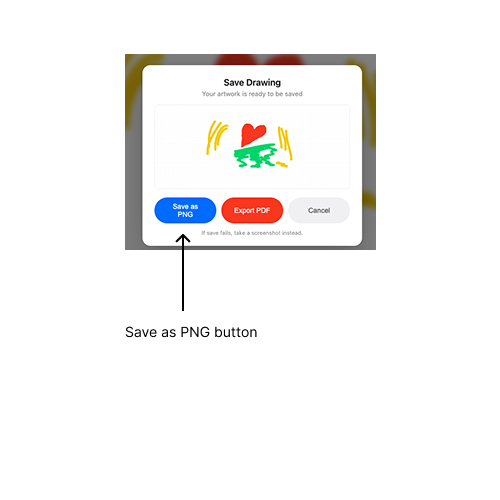
Click "Save as PNG" to download your artwork.
You can also save as PNG from the Settings modal under the Export section.
Export as PDF
PDF (Portable Document Format) is ideal for sharing high-quality artwork that needs to be printed or included in documents. It preserves the quality of your drawing perfectly.
How to export as PDF
- Click the Save button on the toolbar.
- In the preview modal, click Export PDF.
- The PDF file will download to your device.
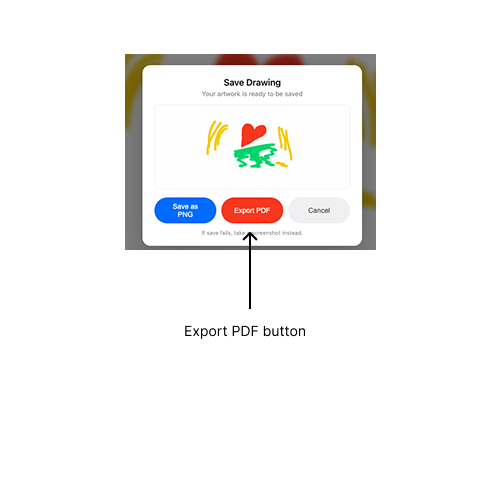
Export your artwork as a PDF document.
PDFs are great for printing because they maintain high resolution and quality.
Share Directly
The Share button lets you send your artwork directly from Draw It Online using your device's native sharing features.
How to share
- Click the Share button on the toolbar (the share icon).
- A share message will be automatically copied to your clipboard.
- Your artwork will be prepared for sharing.
- Choose a sharing method – email, messaging, social media, or save to cloud.
Click the Share button to send your artwork directly.
The share message is automatically copied to your clipboard – just paste it into your chat or post!
Pro Tips for Exporting & Sharing
- Check your background – The white canvas background will be included in your export. Change it in Settings if you want a different colour.
- Use PNG for online – PNG is the best format for sharing on social media or websites.
- Use PDF for printing – PDF preserves quality and is easier to print at high resolution.
- Share message – The share message includes a link to Draw It Online so others can try it too.
- Grid doesn't export – The grid is a visual guide only and won't appear in your exported PNG or PDF.
Your artwork, ready to share with the world.
Auto-Save vs Manual Export
Draw It Online automatically saves your work in your browser's local storage. This means you can close the tab and come back later to continue drawing.
However, auto-save is only for your own convenience. To actually keep a permanent copy of your artwork, you need to export it as PNG or PDF.
Auto-saved drawings are stored in your browser's local storage. If you clear your browser data, you'll lose your drawings. Always export important work!
Now you know how to export and share your artwork from Draw It Online. Create something amazing and share it with the world!