Customising Your Workspace
Make Draw It Online your own. This tutorial covers everything you can customise – from canvas background and grid settings to colour palettes and brush presets.
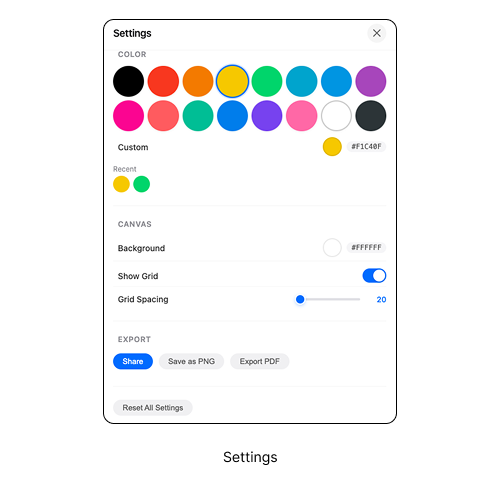
The Settings modal is your control centre.
Opening the Settings
All customisation options are available in the Settings modal. There are two ways to open it:
- Click the gear icon on the toolbar.
- Press Ctrl + , on your keyboard.
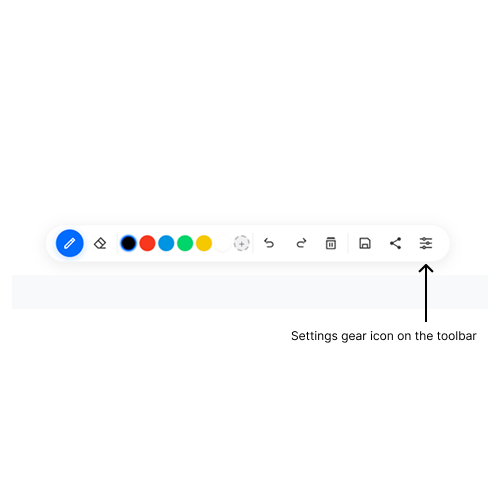
Click the gear icon to open Settings.
The Settings modal is organised into sections: Drawing, Color, Canvas, and Export.
Changing the Canvas Background
The default canvas background is white. You can change it to any colour that suits your mood or project.
How to change the background
- Open the Settings modal.
- Find the Canvas section.
- Click the colour picker next to Background.
- Choose your colour or enter a hex code.
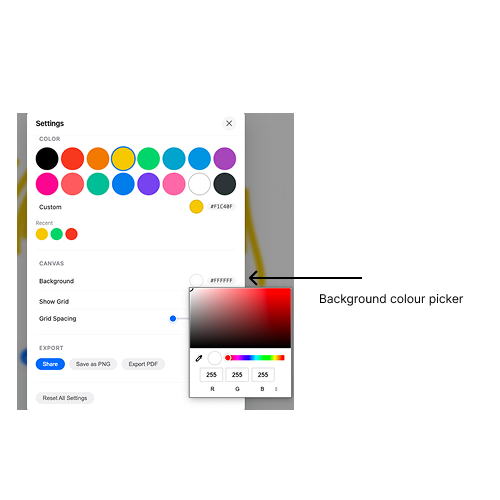
Change the canvas background to any colour.
A darker background can make your artwork pop, while a lighter background is better for printing.
Grid Settings
The grid is a visual guide that helps with alignment and proportion. You can customise both its visibility and spacing.
How to customise the grid
- Open the Settings modal.
- In the Canvas section, find Show Grid.
- Toggle the switch to turn the grid on or off.
- Use the Grid Spacing slider to adjust dot density.
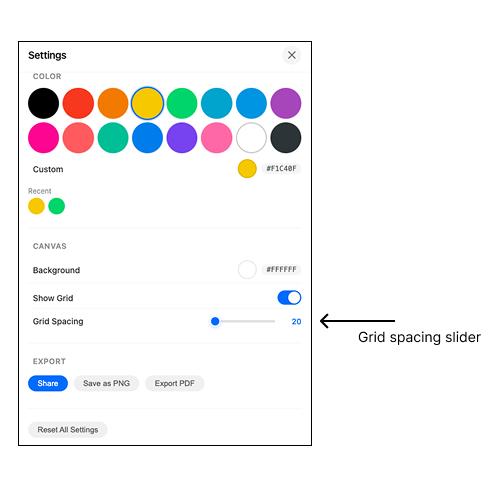
Toggle the grid and adjust spacing.
- 20-30px – Fine grid for detailed, precise work.
- 40-50px – Medium grid, good for most drawing tasks.
- 60-80px – Coarse grid for composition planning.
Colour & Palette Settings
Draw It Online gives you full control over your colour palette.
Custom colours
- Use the Custom colour picker to select any colour.
- Your recent colours are saved automatically.
- Click any colour swatch to apply it instantly.
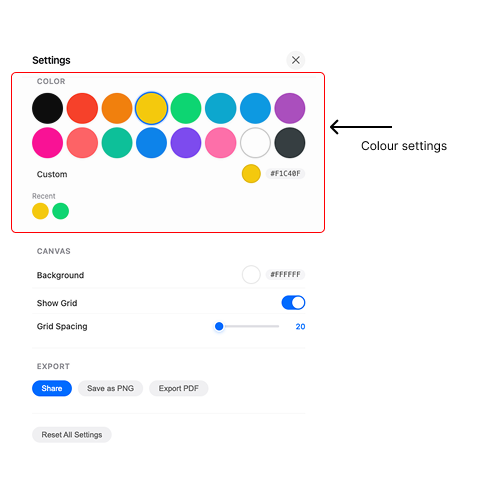
Select any colour with the custom picker.
Recent colours are saved across sessions – you'll never lose your favourite shades.
Brush Presets
You can customise your brush experience with different types, sizes, and opacity settings.
Brush settings you can customise
- Brush Type – Choose from Basic, Soft, or Ink.
- Brush Size – Adjust from 1px to 30px.
- Opacity – Control how transparent your strokes are.
- Eraser Size – Adjust the eraser from 1px to 60px.
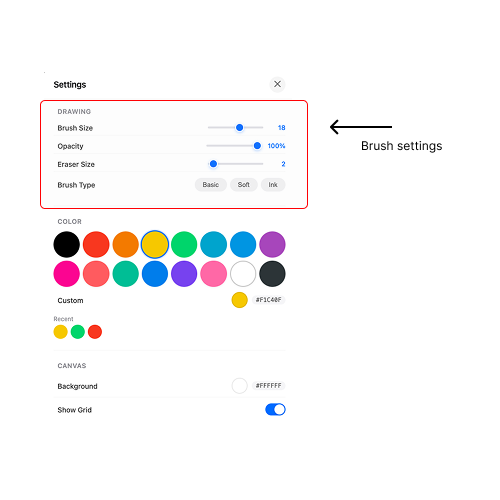
Customise your brush experience.
Resetting Your Settings
If you want to start fresh, you can reset all settings to their defaults.
How to reset
- Open the Settings modal.
- Scroll to the bottom.
- Click Reset All Settings.
- Confirm your choice.
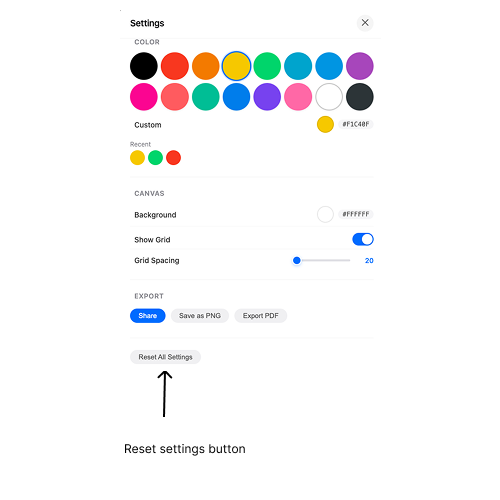
Reset everything to default in one click.
Resetting settings won't delete your drawings – only your preferences will be reset.
Pro Customisation Tips
- Match your mood – Change the background colour to suit your project or mood.
- Grid for precision – Use the grid for architectural or proportional drawings.
- Save your favourites – Recent colours are saved automatically – use them for consistency.
- Experiment with brush types – Each brush type creates a different effect. Try them all.
- Opacity for shading – Use low opacity for soft shading and high opacity for solid lines.
A workspace customised to your preferences.
Now you know how to customise your workspace in Draw It Online. Make it your own and enjoy drawing in an environment that suits you.